> ## Documentation Index
> Fetch the complete documentation index at: https://guide.onthe.ai/llms.txt
> Use this file to discover all available pages before exploring further.
# 서치콘솔 계정 초대
> 색인 작업을 온더AI가 함께 도와드릴 수 있도록 구글 서치콘솔에 온더AI 계정을 초대하는 방법을 안내해요.
블로그 글이 구글에 빠르게 색인되도록 온더AI가 함께 확인하고 돕고 있어요. 이를 위해 서치콘솔에 온더AI 계정 초대가 필요해요.
## 초대 방법
1. [Google Search Console](https://search.google.com/search-console)에 접속해 주세요.
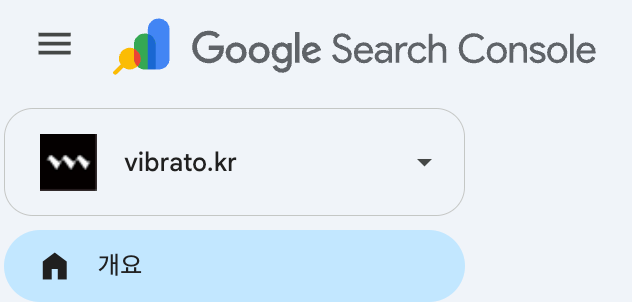
2. **왼쪽 상단에 표시된 주소가 본인 블로그 주소인지 확인해 주세요.** 다른 주소가 표시되어 있다면, 주소를 눌러 목록에서 블로그 주소를 선택해 주세요.
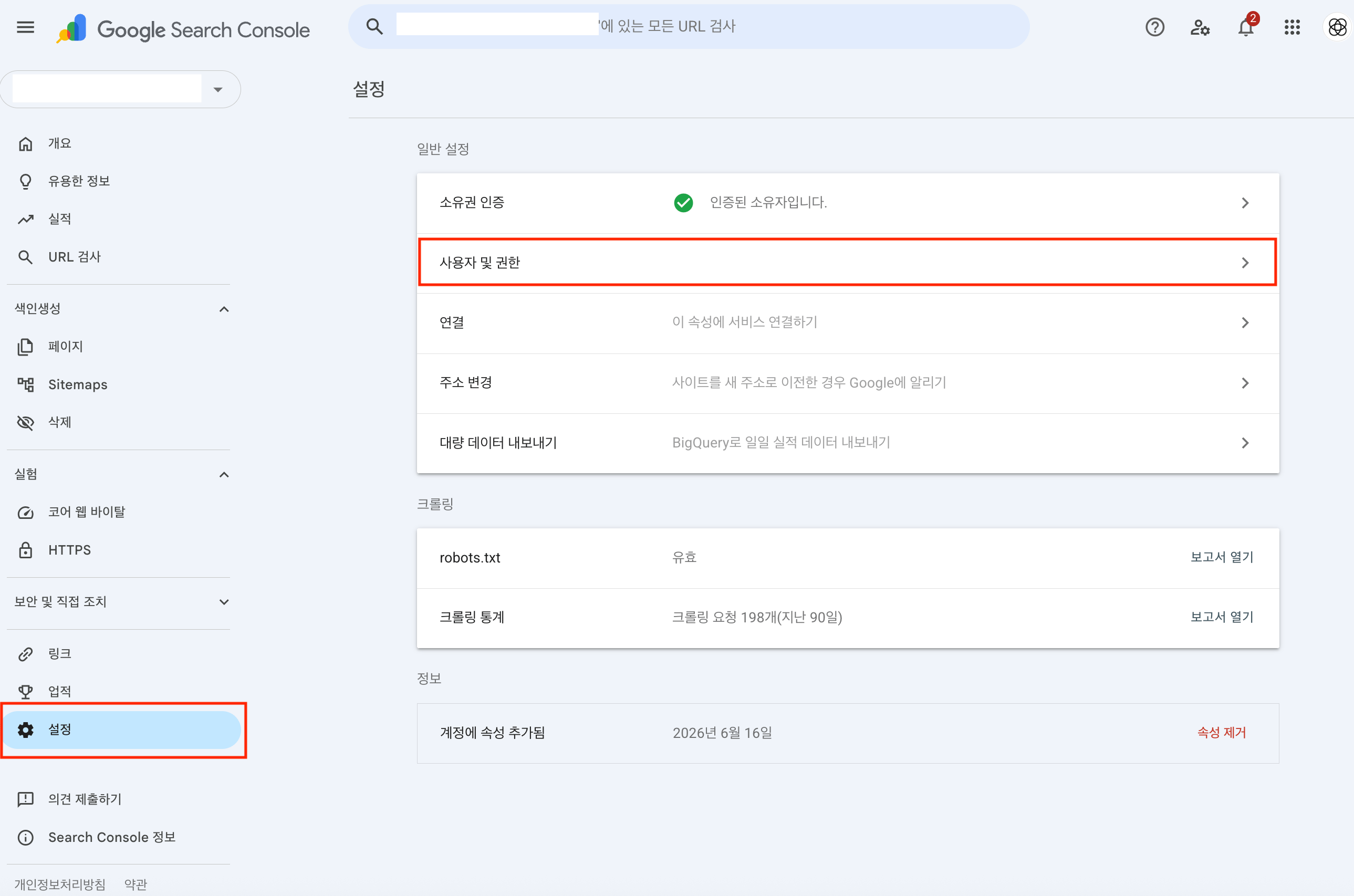
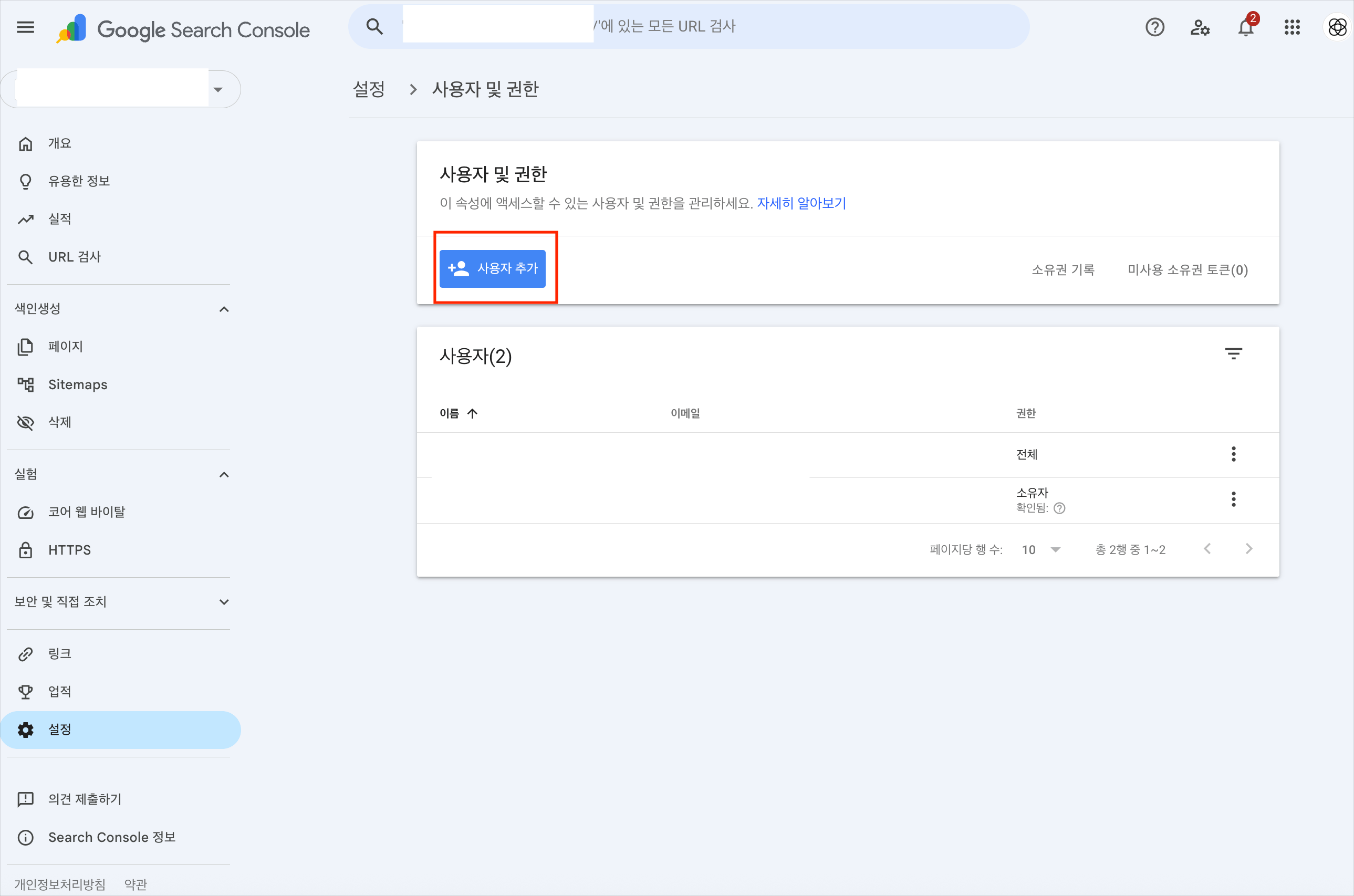
 3. **설정 → 사용자 및 권한 → 사용자 추가**로 이동해 주세요.
4. 이메일 주소에 **[contact@onthe.ai](mailto:contact@onthe.ai)** 를 입력하고 추가해 주세요.
> 다른 속성이 선택된 상태에서 초대하면 의도하지 않은 사이트에 권한이 추가될 수 있어요. 초대 전에 왼쪽 상단의 주소를 한 번만 확인해 주세요.
3. **설정 → 사용자 및 권한 → 사용자 추가**로 이동해 주세요.
4. 이메일 주소에 **[contact@onthe.ai](mailto:contact@onthe.ai)** 를 입력하고 추가해 주세요.
> 다른 속성이 선택된 상태에서 초대하면 의도하지 않은 사이트에 권한이 추가될 수 있어요. 초대 전에 왼쪽 상단의 주소를 한 번만 확인해 주세요.
 초대가 완료되면 색인 요청부터 모니터링까지 온더AI가 함께 확인하며 도와드려요.